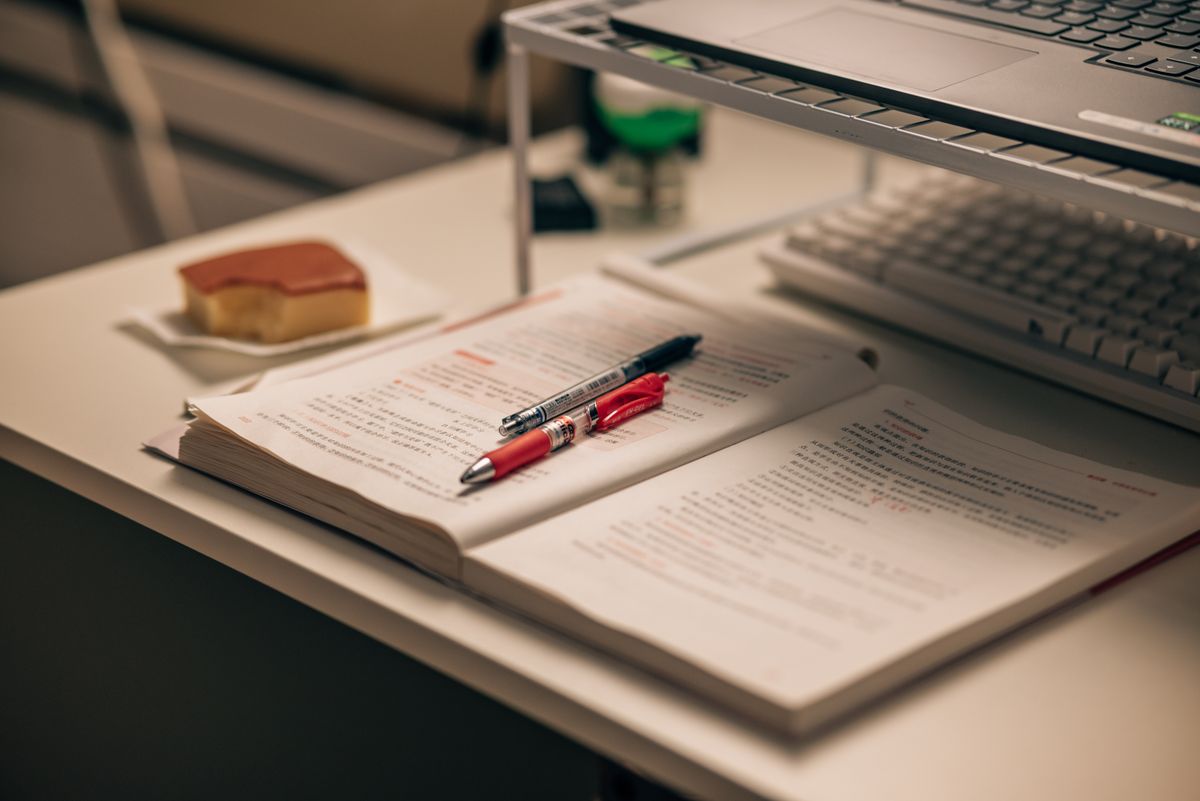
Hero Introduction
We have all encountered trapped text.
It might be a quote inside a screenshot on your phone, a recipe in a photographed page, a set of tables inside a scanned PDF report, or an invoice receipt you need to log in a spreadsheet.
Instead of typing everything out manually, you can extract the characters instantly using Optical Character Recognition (OCR). However, if the image quality is poor or the document has unusual layout columns, standard OCR can yield garbled text filled with spelling errors, requiring more time to clean up than it would have taken to type the text from scratch.
Here is a guide to how OCR actually works and how to get clean, accurate text extraction on your first attempt.
Quick Answer
To extract text from images accurately, ensure the source image has high contrast, is not rotated or skewed, and has a resolution of at least 150 DPI. Run the file through an OCR reader, select the specific columns or areas to extract, and verify character substitutions (like l for 1) before finalizing.
Table of Contents
- What is OCR and How Does It Work?
- Trapped Text Scenarios: normal PDF vs Scanned PDF
- Why OCR Makes Mistakes (and How to Prevent Them)
- Step-by-Step Text Extraction Workflow
- When OCR Saves Significant Time
- Frequently Asked Questions
What is OCR and How Does It Work?
OCR stands for Optical Character Recognition. At its core, OCR engines (like the open-source Tesseract OCR engine) analyze the light and dark pixels of an image to identify letter shapes.
[ Scanned Image Pixels ]
           ↓
[ Binarization: Convert to Black & White ]
           ↓
[ Feature Extraction: Analyze Loops & Corners ]
           ↓
[ Character Matching: Identify 'A', 'B', 'c' ]
           ↓
[ Output: Searchable Text Block ]
Once the algorithm matches pixel patterns against its database of letter grids, it outputs them as editable text blocks. Modern OCR engines also analyze context, using dictionaries to guess words if some letters are blurry.

Capturing a handwritten note page to prepare it for character recognition
Trapped Text Scenarios: normal PDF vs Scanned PDF
Copying text from a standard PDF is straightforward because the characters are stored natively. You simply highlight and copy.
With scanned PDFs, however, the text is trapped inside a flattened raster image. The browser displays the text on screen, but it cannot select it because there are no underlying text characters—only a pixel grid.
To convert this image stack back into editable data, you need to run the pages through an OCR scanner.
| Scanned PDF (Raster) | Normal PDF (Vector) | Why It Matters |
|---|---|---|
| Text is flat image pixels. | Text is individual characters. | Scanned PDFs require OCR; normal PDFs allow direct copy-paste. |
| Cannot be searched or selected. | Fully searchable via Ctrl + F. | Searchable PDFs are indexed by search engines. |
Why OCR Makes Mistakes (and How to Prevent Them)
If your OCR output looks like a mix of random characters, check these four common culprits:
- Resolution (DPI): Images under 150 DPI are too blurry for the OCR engine to distinguish clean letter boundaries. Aim for 300 DPI for printed sheets.
- Contrast & Shadows: If you photograph a receipt under poor lighting, paper folds and shadows are processed as black lines, confusing the scanner.
- Rotation and Skew: If the page is rotated even 5 degrees, the OCR engine struggles to define line heights. Always rotate the image straight before scanning.
- Layout Columns: Multi-column documents (like news prints) can be read straight across the page if the layout parser is weak.
You can run your document pages through our local Image to Text (OCR) tool, which automatically handles character recognition client-side.
Step-by-Step Text Extraction Workflow
Optimize your digitizing speed with this clean text extraction workflow:
Prepare the Image
Straighten/rotate the image, crop out irrelevant margins, and increase contrast using your device's photo editor if the text is faint.
Extract Text Pages
If you are dealing with a heavy multi-page file, use PDF Split to isolate only the target sheets before loading them.
Run Local OCR
Load the files into our browser-based Image to Text (OCR) tool.
Proofread and Verify
Scan the output text blocks for visual replacements, especially numbers (e.g. O vs 0 or I vs 1), and export the text.

Digital interface displaying extracted text lines on an office screen
When OCR Saves Significant Time
Running OCR is a massive time-saver for several real-world tasks:
- Academic Research: Scan a chapter of an old printed book and turn it into searchable quotes.
- Office Accounting: Convert printed expense reports or receipts into spreadsheet columns.
- Handwritten Notes: Digitise notebook pages to turn them into structured text.
Pro Tip
Always process your text extraction locally. When you upload contract scans, medical cards, or private study notes to public cloud OCR engines, they can be saved on remote databases. Processing files inside browser memory ensures your sensitive information remains private.
Related Tools
Digitize your reading workflow with these offline-friendly utilities:
- Image to Text (OCR): Convert scanned pages and pictures into editable text formats.
- PDF Split: Isolate specific pages before running OCR to speed up processing.