Hero Introduction
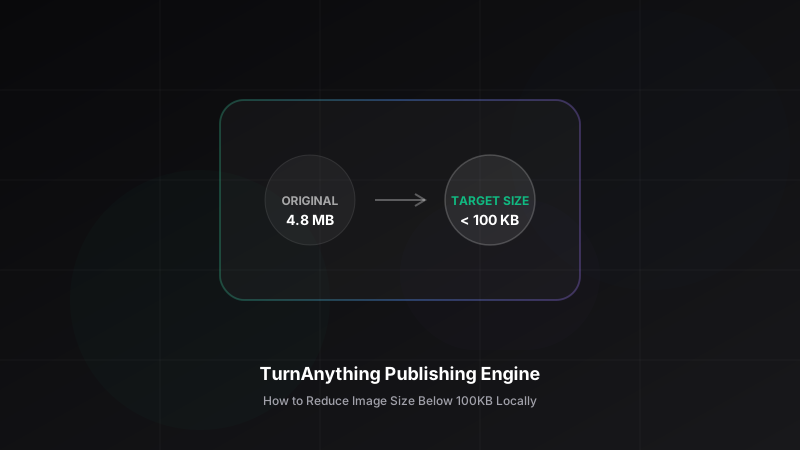
Your smartphone photo is easily 5 MB, but the upload portal only allows 100 KB.
Whether you are applying for a passport, submitting school assignments, or updating a database profile, getting hit with a "File size too large" error is extremely frustrating.
You do not need to install complex software or upload your private documents to sketchy cloud servers just to shrink them.
In fact, you can squeeze your images under 100KB in seconds directly within your browser.
Here is how to do it without losing essential clarity.
Quick Answer
To reduce any image size below 100KB, resize the image dimensions to a maximum width of 1200px and compress using the WebP or JPEG format at a quality setting between 70% and 80%. This combination guarantees a tiny file size while maintaining excellent readability and clarity.
Table of Contents
- The 100KB Size Constraint
- Step-by-Step Solution
- Why Local Resizing and Compression Works
- Common Mistakes to Avoid
- Frequently Asked Questions
- Related Tools
- What's Next?
The 100KB Size Constraint
Modern phone cameras capture high-resolution photos intended for large prints.
For digital submittals, those extra pixels are completely wasted:
- Huge resolutions slow down database backups.
- Uploads fail on public government and school servers due to strict size constraints.
- Reducing files blindly makes signatures, numbers, or text unreadable.
Step-by-Step Solution
If you would rather skip manual coding, our Image Compressor handles this entire resizing and compression flow locally in your browser.
Follow these simple steps:
Upload Your Image
Drop your JPG, PNG, or WebP file into the upload zone.
src: /articles/reduce-size-100kb/upload.svg caption: Upload interface
src: /articles/reduce-size-100kb/dimension-input.svg caption: Limit dimensions to 1200px width
A width of 1200px is more than enough for digital forms and keeps text highly legible.
src: /articles/reduce-size-100kb/quality-slider.svg caption: Quality slider
src: /articles/reduce-size-100kb/download.svg caption: Download button
Why Local Resizing and Compression Works
Image size boils down to dimensions and compression quality. Reducing both yields massive gains.
Original Image (e.g. 5 MB)
     ↓
Resize Dimensions (to 1200px width)
     ↓
Reduce Quality (to 75%)
     ↓
Final Output (Under 100 KB)
By resizing first, you discard up to 90% of the raw pixels. The compression algorithm then handles the rest by optimizing color blocks.
| Metric | Original | Optimized |
|---|---|---|
| File Size | 4.8 MB | 84 KB |
| Dimensions | 4000 x 3000 | 1200 x 900 |
| Upload Result | Rejected | Approved |
Common Mistakes to Avoid
Common Mistake
Using PNG for complex photographic documents. PNG is lossless and keeps files too heavy. Convert to WebP or JPG instead.
Pro Tip
Always run your image processing offline. Once our page loads, you can turn off your internet; your documents are compiled locally in memory, keeping your personal details completely private.
Frequently Asked Questions
Why is my PNG file still over 100KB?
PNG is designed for pixel-perfect screenshots and illustrations, which makes it too heavy for photos. Converting it to WebP or JPEG will solve the size problem.
Does my original file get modified?
No. The compressor runs in-memory and outputs a brand new file, leaving your original photo untouched.
Related Tools
If you need to change format containers or bundle pages:
- Image Converter: Easily change formats from PNG to WebP or JPG.
- Image to PDF: Merge multiple optimized images into one PDF.
What's Next?
Now that your image fits within the 100KB limit, you can continue your workflow:
- Combine multiple images into a single PDF for official submittals.
- Extract text from your document scan using our local OCR tool.
- Isolate your subject by removing distracting background elements.